Save YouTube videos, and remember what they said
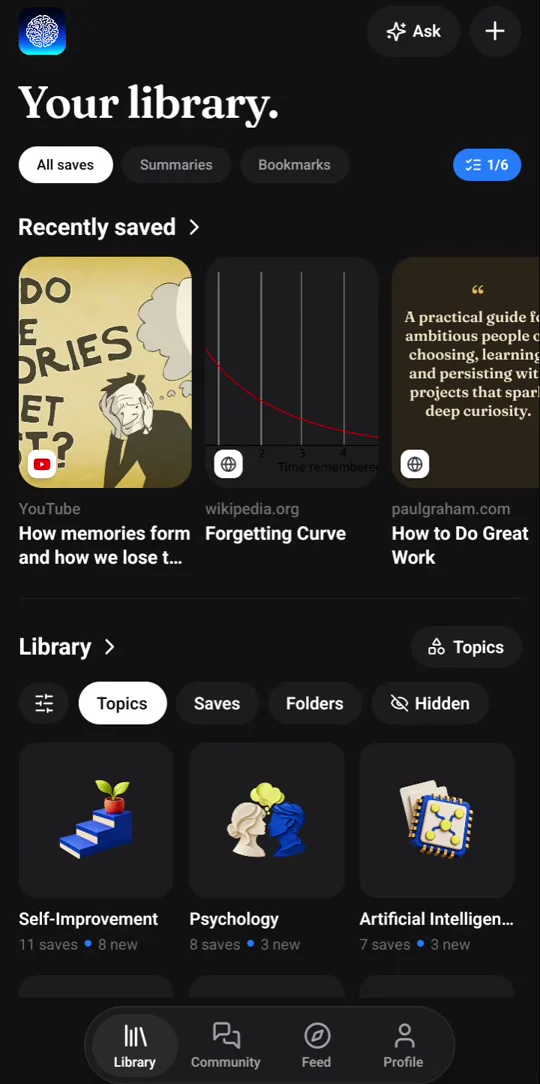
Share a YouTube video to Recl from your phone, or click the Recl button under the video in Chrome. Recl reads the transcript and writes an overview and key takeaways, each with a timestamp, files the video under its topics, and brings the key ideas back after 1, 3, 7, 14, 30 and 60 days.
Steps checked against the app on 23 October 2026.
How to save a YouTube video to Recl
On iPhone or Android
- Open the video in the YouTube app and tap Share.
- Pick Recl in the share sheet. On iPhone it can sit under More the first time.
- Recl saves it from the share sheet and shows it reading the video and pulling out the key ideas. You stay in YouTube.
In Chrome on a computer
- Install the Recl extension from the Chrome Web Store and connect it to your account (one visit to app.recl.app/extension/connect while signed in).
- On any YouTube watch page, click the Recl button in the row under the video, or press Ctrl+Shift+S (Cmd+Shift+S on a Mac).
- The summary is built in the background and appears in your library.
On the web
- Copy the video's link.
- Paste it into the save box on app.recl.app (or the + tab in the Recl app).
What Recl does with a YouTube video
A summary you can scan
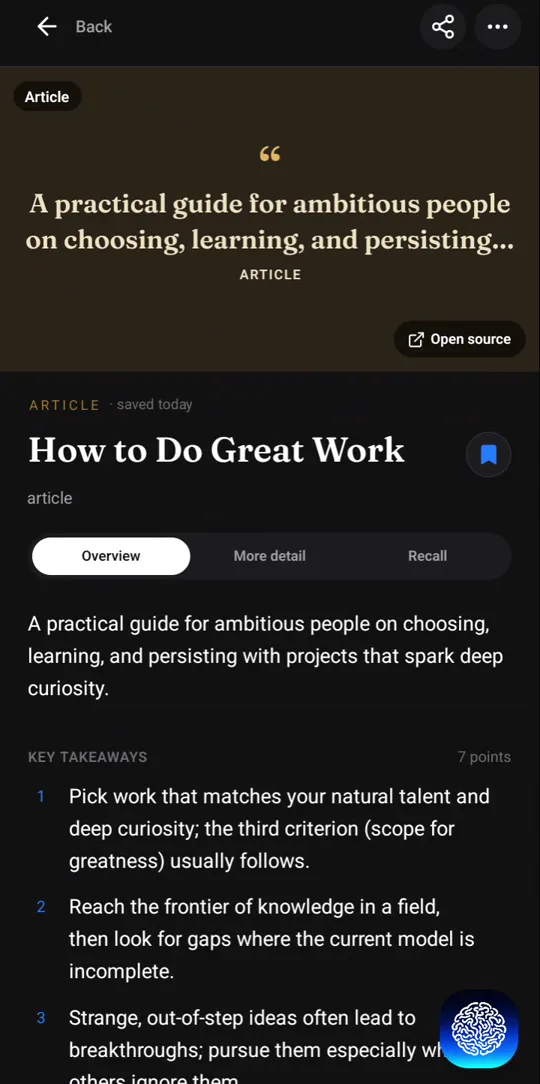
A one-line overview, then the key takeaways. Each point carries a timestamp that jumps back to the moment it was said, so the summary works as a map of the video.
Three depths
Read it Short for the gist, Concise for the structure with time ranges, or Elaborate when you are studying the video properly.
Sorted without folders
Each video is filed under the topics it actually covers, so a lecture on sleep and a podcast about sleep end up next to each other.
Brought back before you forget
The key ideas come back as a recall card after 1, 3, 7, 14, 30 and 60 days. One tap marks a card reviewed and moves it to the next, longer gap; after the last step it stops coming back.
Findable months later
Ask Recl a question and get an answer drawn from your saves, with the sources. In the Chrome extension you can also search your saved videos by meaning, not only by title.
Written in your language
Summaries are written in the language your Recl app is set to, whatever language the video is in.
Good to know
- A video needs captions or clear speech. When there is no usable transcript, Recl can't summarize it and says so.
- Videos of five hours or more ask you to confirm first, because they use a lot of your plan's content hours.
- Paid plans include an allowance of content hours and saves each period. It is an allowance, not unlimited.
Frequently asked questions
- Does Recl work with YouTube Shorts?
- Yes. Shorts go through the same pipeline as full videos, and the summary is sized to the video, so a 40-second Short gets a short summary.
- Can I jump to the part of the video a point came from?
- Yes. Every key takeaway carries a timestamp, and the Concise summary marks each section with its time range. Tapping one opens the video at that moment.
- Can I save a whole playlist?
- Yes, on a paid plan: paste the playlist link into the web app or share it from your phone, and each video is saved and summarized under the playlist. The Chrome extension saves one video at a time.
- What if the video is not in English?
- Recl writes the summary in your app's language, whatever language the video is in, as long as the video has captions or clear speech to read.
Read more
Try it with one save
Save one thing you would hate to forget, and see whether you still remember it next month.